
 |
||||||||||||||
|

 |
|||||||||
|
|||||||||
 |
|||||||||
|
|||||||||
 |



 |
 PlayDedicated.com Gaming Network FAQ: SSH PlayDedicated.com Gaming Network FAQ: SSHStarting your server Stoping your server Restarting your server Using SSH Accounts with PlayDedicated.com Setting up SSH and PuTTy Start by downloading PuTTy SSH from: http://www.playdedicated.com/putty.exe Now open PuTTy SSH by double clicking on Putty It should look something like this: Where it says Host Name (or IP address) put in sv1.PlayDedicated.com or sv2.PlayDedicated.com, ect Notice: it should tell you either sv1 or sv2, ect in the email that you got from us. Where it says Protocol put a dot where it says "SSH" like you see in the picture. Now go down to "Saved Sessions" and type in: sv1.PlayDedicated.com or sv2.PlayDedicated.com, ect and click "Save". 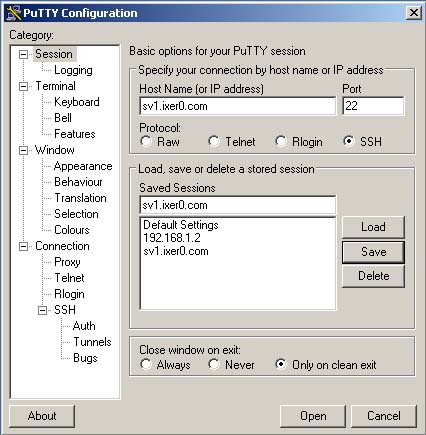 [Click to Enlarge] Loging on SSH with PuTTy Now double click on "sv1.PlayDedicated.com or sv2.PlayDedicated.com" in the Saved Sessions. Now where it says Login As: You need to put your user name that you received in email there. Notice: the username and password is the same username and password for your ftp. I am going to use this one as a test: Login as: rtcw Sent username "rtcw" rtcw@sv1.PlayDedicated.com's password: 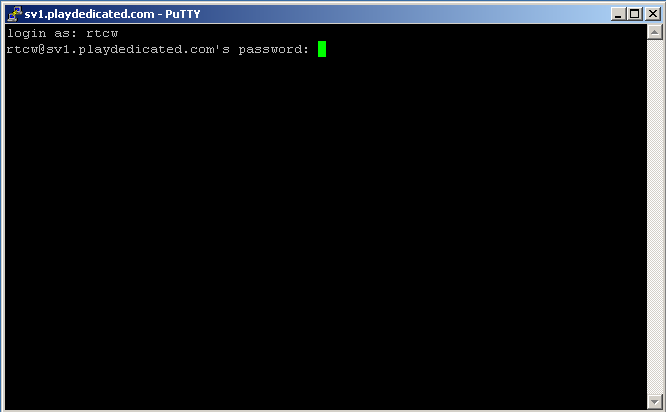 [Click to Enlarge] then you will need to put a password that you received in email. After you enter a password you will be at the main command line. [rtcw@sv1 rtcw]$ 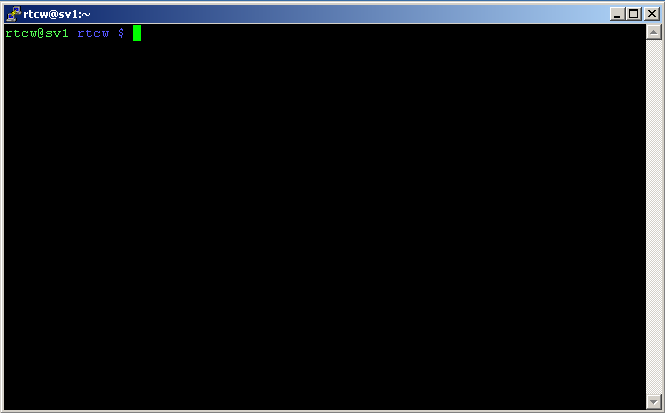 [Click to Enlarge] Now rtcw@sv1 that is the username @ sv1.PlayDedicated.com the server. the second rtcw is the folder that you are currently in. Get a list of scontrol syntax. first when you login type: ./scontrol This will show you the syntax for scontrol [rtcw@sv1 rtcw]$ ./scontrol Usage: ./scontrol {start|stop|restart|status} 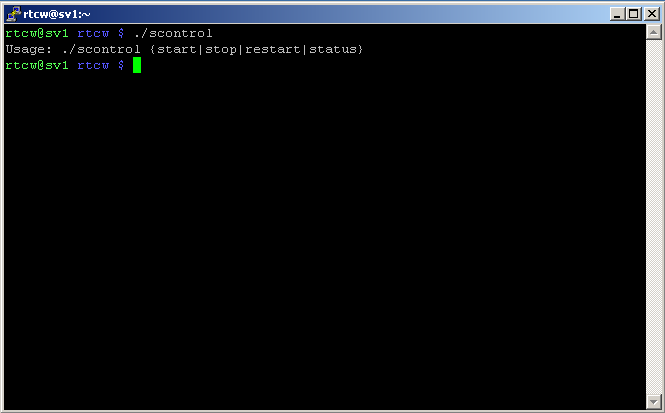 [Click to Enlarge] Check to see if a server is running. first when you login type: ./scontrol status [rtcw@sv1 rtcw]$ ./scontrol status 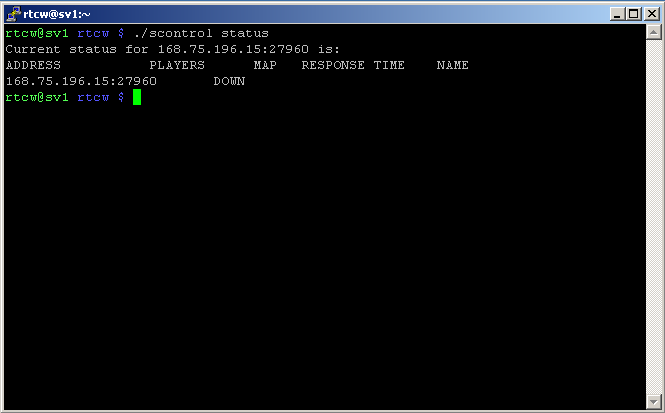 [Click to Enlarge] Starting a Server Now to start your server use this command Type ./scontrol start [rtcw@sv1 rtcw]$ ./scontrol start 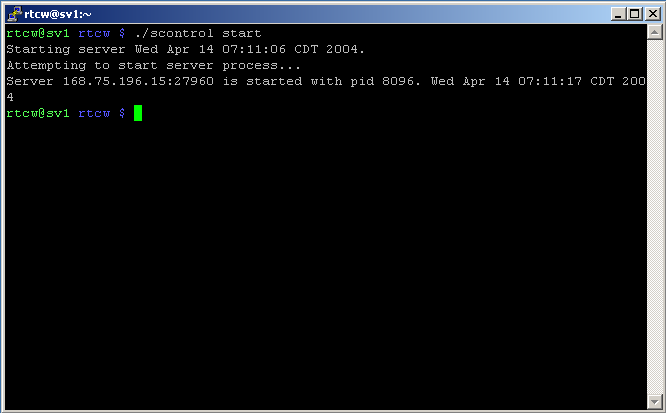 [Click to Enlarge] Check your server aftering starting Now to check the status of your server use this command Type ./scontrol status [rtcw@sv1 rtcw]$ ./scontrol status 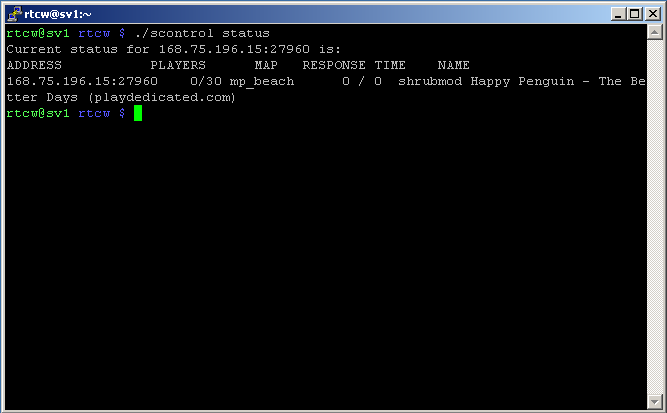 [Click to Enlarge] Stoping Server Now to stop your server use this command Type ./scontrol stop [rtcw@sv1 rtcw]$ ./scontrol stop 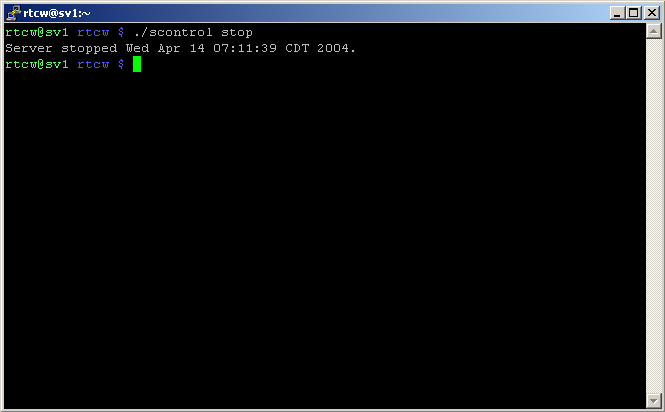 [Click to Enlarge] Restarting Server Now to restart your server use this command Type ./scontrol restart [rtcw@sv1 rtcw]$ ./scontrol restart 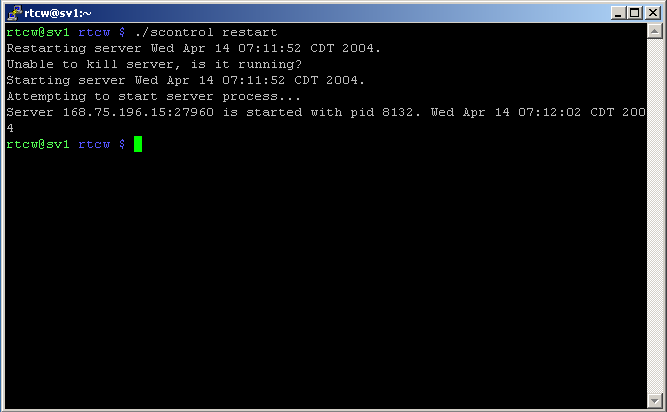 [Click to Enlarge] Resume the console of a server Now if you would like view the console of the server use this command Type screen -r [rtcw@sv1 rtcw]$ screen -r It will show you the console and then you and use commands in some consoles for some games then to detach just do the following again WARNING YOU MUST DETACH FROM THE SERVER BEFORE EXITING PUTTY OR YOUR SERVER WILL NOT REMAIN ONLINE! Hold down control on your key board and then press A and then D on your keyboard. Then it should say: [detached] [rtcw@sv1 rtcw]$ Now to disconnect from SSH type "exit" If you have any questions please email support@playdedicated.com |
 |
